
Need Help in Dorico? I Got You!

A lot of folks are switching over from Finale to Dorico. I talked about this before, but I’ve been doing quite a few lessons and YouTube tutorials with tips for working in Dorico.
Dorico is becoming the leading software for notation and engraving of sheet music. Steinberg’s team is actively working on the software and we’re receiving great updates regularly, including the latest update, Dorico 5.1.70 which adds a few small fixes like in the MusicXML import. Also, Steinberg released Cubase 14 which is bringing Cubase and Dorico even closer together to make working between the programs that much easier!
I will be continuing my Dorico tutorials on YouTube in the coming weeks.
Here’s just three of my favorite tricks with Dorico:
1. Use TouchOSC!
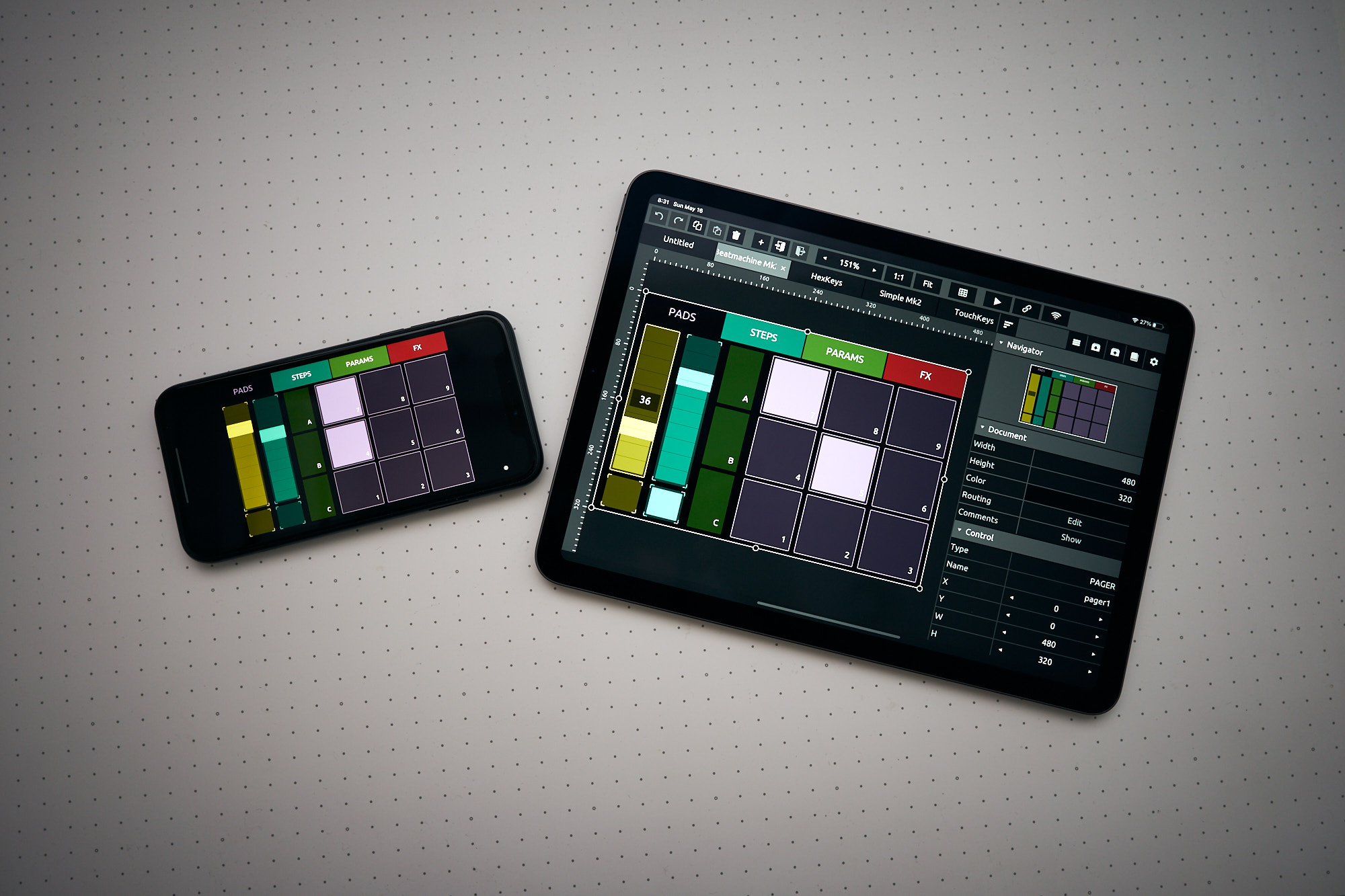
TouchOSC is an app for your mobile device that can integrate touchscreen technology to send MIDI or OSC messages to your computer and DAW. It’s a major time saver and workflow enhancer.
I use this to create hotkeys for tools and processes that I constantly use. It’s a major time saver so that I don’t have to rely as heavily on my mouse clicking.
2. Use the Jumpbar!
The jumpbar is a unique way to perform commands and get stuff done! Again this is trying to minimize the number of mouse clicks so we as composers can work faster.
This command will take you to a specific rehearsal marker: r[n]; so this means the letter “r”, and then the rehearsal number. For example: rK or rk will jump to rehearsal K.
You could also just start typing what it is you want to do. So you could select a note you have in one staff and then activate the jumpbar using “j” on your typing keyboard. Then you could type something like “du” and you’ll see a list of commands with the letters “du” in them, like “duplicate”. So if you’re not 100% sure where the command is for what you want to do, the jumpbar can be a great starting point!

3. Wildcards
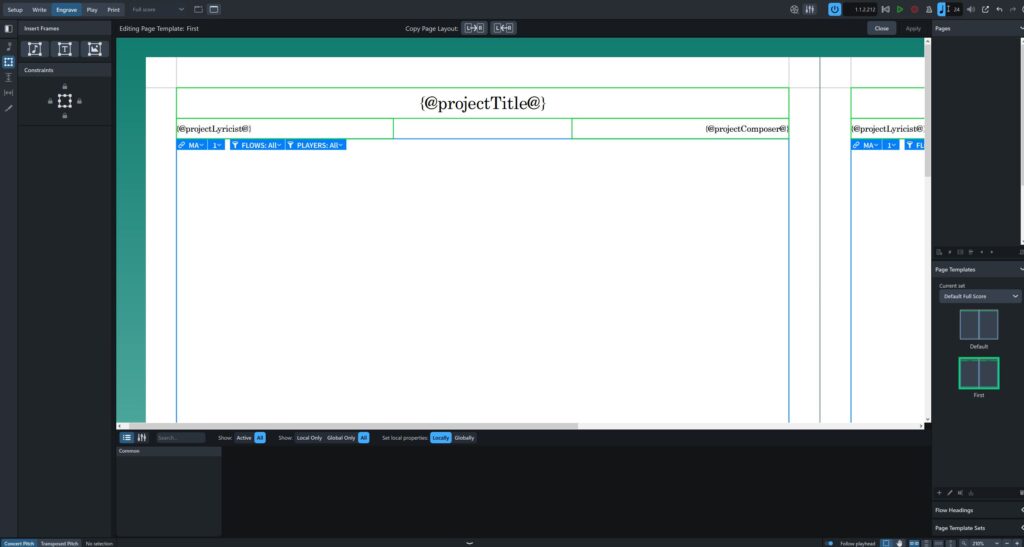
Text Tokens, or wildcards, are codes that you can use as substitutes for information stored in your project, such as titles, composers, and the time and date. This means you don’t need to type information each time you have a new layout, part, or flow. The information can automatically be updated via the “Project Info” menu within the drop-down FILE.
I use these all the time because text editing in Engrave mode is often very difficult when needing to enter into overlapping boxes. I find the Project Info menu much easier to work with.
With the new unveiling of Dorico 6, there are a lot of amazing updates! Check out my new video highlighting some of my favorite updates.